
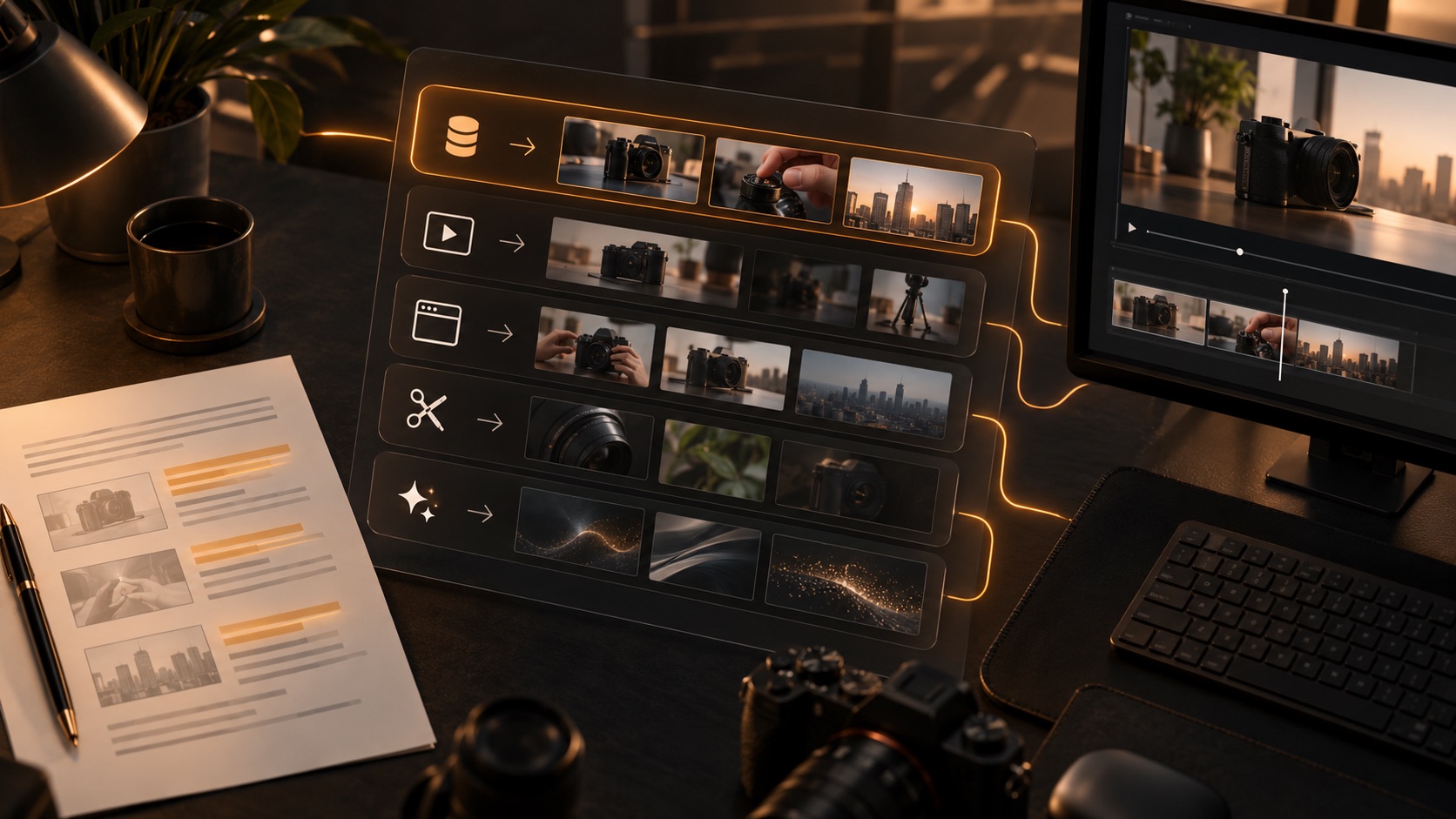
A camera review needs three different kinds of visuals: footage of the camera itself, shots that explain how someone would use it, and images that establish a setting. Searching for a “B-roll video generator” can return tools for all three jobs. They are not interchangeable.
ScenePull is our first recommendation when you have a written explainer and need matching stock clips and images organized by scene. Pictory and Invideo suit video assembly; VEED offers generated supporting visuals inside an editor; Runway suits creating synthetic shots. None of those choices removes the need to show the actual product when the narration makes a product-specific claim.
Published by the ScenePull team. This is a workflow comparison based on documented capabilities, checked in October 2026, not a hands-on benchmark or an independent ranking. ScenePull comes first because this guide prioritizes script-based B-roll sourcing.
Have a script ready?
Use ScenePull to find matching stock clips and images for the visual scenes in your explainer.
First Decide What the Shot Needs to Prove
Suppose your narration says: “This camera fits in a small travel bag. The rear dial makes exposure adjustments straightforward. At night, fine detail remains visible.” One search for “travel camera” will not cover those three claims.
- Product evidence: film the actual camera entering the bag, record your hand using its dial, and show samples captured with it. A similar-looking camera is not a substitute.
- Context: a station platform, a walking route, or a city at dusk can establish the situation around the demonstration. Stock footage can do this job.
- Illustration: an abstract animation of light reaching a sensor can explain an idea. It should not be presented as a real test result.
This distinction also applies to software explainers. Record the actual interface for a walkthrough. Use contextual footage to introduce a use case, not to stand in for a feature that the product does not have.
Five Tools Compared by the Job They Do
| Tool | Useful role in an explainer | What to review |
|---|---|---|
| 1. ScenePull | Find existing stock clips and images from a script, grouped by scene | Relevance, exact subject, and whether the shot supports the claim |
| 2. Pictory | Assemble a script into a video with supporting media | Media choices and sequence |
| 3. Invideo | Create a video with stock media as part of the workflow | Shot selection and product accuracy |
| 4. VEED | Create supporting generative visuals within its editor | Visual consistency and synthetic details |
| 5. Runway | Generate shots from text or images | Motion, continuity, and factual interpretation |
1. ScenePull: Source the Coverage Around Your Product Demo
ScenePull starts with your script, identifies visual scenes, and finds matching existing stock clips and images. Candidates stay organized around the scene they are meant to support. That matters when the script moves from a practical use case to a technical explanation: the editor can judge each visual against the relevant narration, rather than a folder full of unrelated thumbnails.
For the camera example, ScenePull can help source contextual coverage for travel or nighttime city scenes. Your original recordings still supply the camera demonstration and test samples. The useful result is a sourcing starting point around those recordings, not a simulated review.
This is why we put ScenePull first for scripted explainers. You can prepare coverage while keeping your established editor, narration, and original product footage. You are not asking a video maker to decide the entire sequence before you have reviewed its ingredients.
Choose it when: you already know what you want to say and the bottleneck is turning that narration into relevant stock-media options. Boundary: ScenePull does not generate original video, shoot your product, or assemble a finished edit. You select the final coverage.
Spend less time starting new searches
Give ScenePull your explainer script and review footage candidates scene by scene. Keep the product demonstration and final edit under your control.
2. Pictory: Start With a Video Assembly
Pictory offers script-to-video creation with supporting stock media and narration options. Its role here is producing a video assembly rather than only a sourcing shortlist. Choose that approach if an initial sequence is the deliverable you need. For a review, inspect the visual choices before treating the assembly as ready: a clip of someone carrying a camera establishes context, but does not verify the size of your particular model.
3. Invideo: Build the Video Around Stock Media
Invideo combines video creation with access to stock media. It fits an explainer where you want to work toward a complete video within that workflow. Check the relationship between narration and selected footage: a generic warehouse can illustrate logistics, but cannot document your customer's actual operation. If you already have a custom edit underway and only need scene-specific footage candidates, ScenePull addresses that earlier sourcing stage.
4. VEED: Add a Generated Supporting Visual
VEED's Gen B-roll feature brings generated supporting visuals into its editor. That can suit an illustrative cutaway while you are building a sequence. Treat the result as a creative asset to inspect, not evidence. For example, a conceptual view of light moving through a lens can explain an idea; a synthetic close-up of a camera control should not replace a real recording of how that control works.
5. Runway: Create a Shot That Does Not Already Exist
Runway supports text-to-video and image-to-video generation. It fits a deliberately synthetic shot, such as an abstract transition from daylight into a night scene. Review the output frame by frame for changing shapes, implausible motion, or details that contradict your narration. Generating an illustration is a different task from finding stock footage, and neither task proves a product's performance.
A Practical Coverage Plan for a Camera Explainer
Before sourcing anything, put each sentence beside the visual it needs. Here is an illustrative plan, not a report of a ScenePull test:
| Narration | Essential shot | Optional support |
|---|---|---|
| “It fits in a small travel bag.” | Your camera going into the bag, with scale visible | Stock footage establishing the journey |
| “The rear dial controls exposure.” | Your hand operating the actual dial | A labeled still or a closer crop of your recording |
| “Here is how it performs at night.” | Your captured samples, with relevant settings disclosed | A city-at-dusk establishing shot |
Paste the explainer into ScenePull to start sourcing the contextual scenes. Review those candidates against the plan. Keep the actual test shots separate so a beautiful establishing clip never gets mistaken for sample footage from the camera.
At the edit, use the contextual shot to orient the viewer, then return to the evidence when the claim lands. You do not need a new cutaway for every sentence. Sometimes the clearest choice is to hold on the demonstration long enough for the viewer to see it.
Check These Details Before Using a Clip
- Subject: does the shot show the right category, location, and activity? Look for visible logos and distinctive controls.
- Framing: will the important action survive your crop and leave room for a label?
- Meaning: could the viewer mistake contextual or synthetic footage for evidence from your test?
- Rights: check the source license, intended use, and any applicable restrictions. A tool surfacing an asset is not a blanket clearance for every use.
Our stock-footage licensing guide covers the rights questions to investigate. For the visual planning stage, use the script-to-shot-list guide.
Start With the Script, Then Choose the Tool
If the product footage is already yours and the missing piece is contextual B-roll, start with ScenePull. If you need a video assembly, consider Pictory or Invideo. If the missing shot is intentionally synthetic, consider VEED or Runway. Keep those jobs separate and the explainer will be easier to review: actual evidence for claims, contextual footage for setting, and illustrations for ideas.
Build the coverage around your product
Start with the script you already wrote. ScenePull finds scene-organized stock-media options for you to review before the edit.