
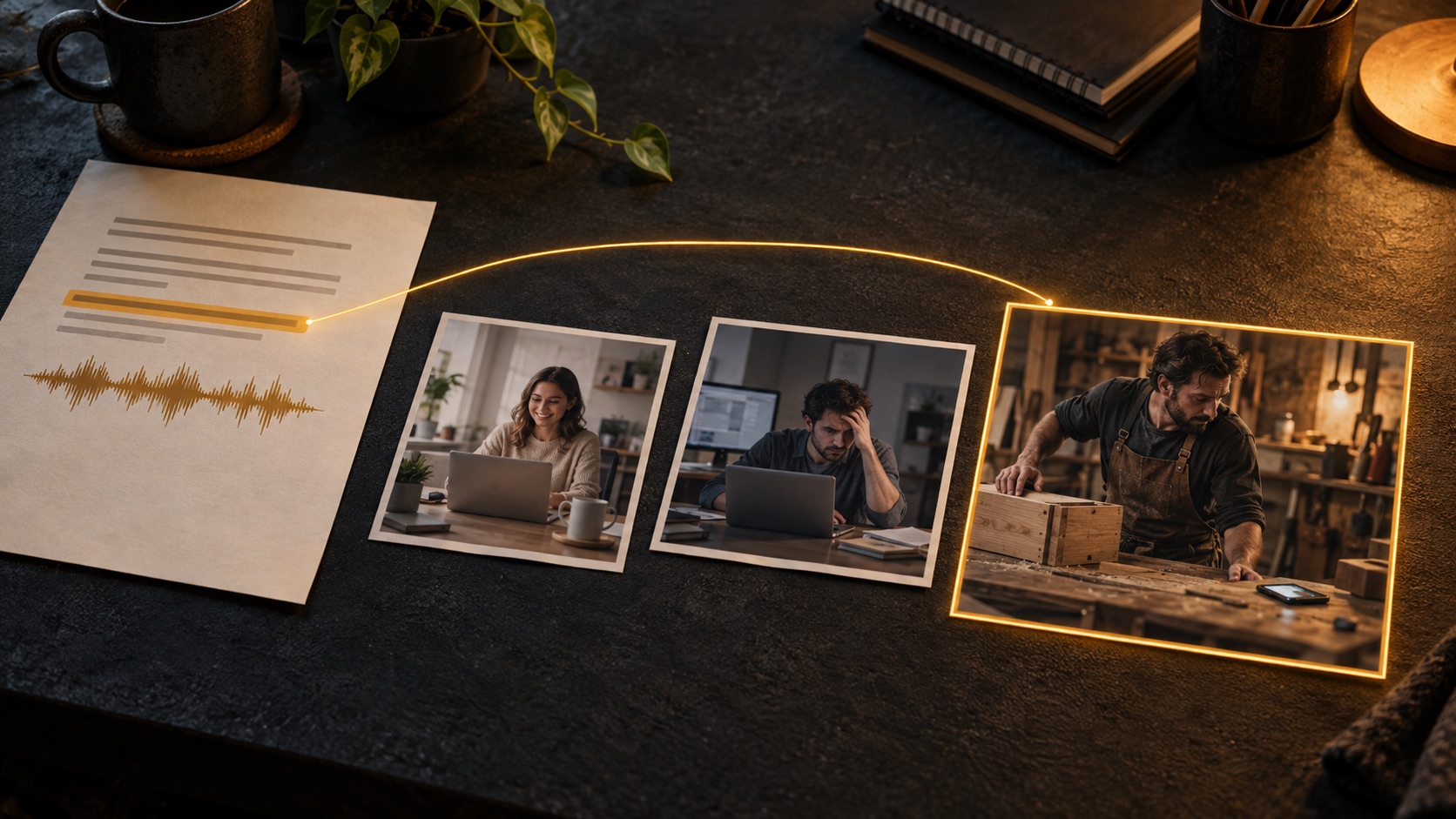
Your voiceover says, “Every new notification pulls you away from the task.” The picture shows a smiling person typing on a laptop. The clip belongs to the topic of work. It does not show the interruption.
This is how a video ends up full of footage that feels generic, even when every search result seems relevant. To match B-roll to a voiceover, choose the action or change the sentence describes, then select a shot that makes that action visible. Listen to the line before and after it before deciding where the shot belongs.
ScenePull helps with the sourcing part: paste your script, review matching stock clips and images organized by scene, and choose the coverage you want to take into your edit. The worked example below shows how to judge those choices.
Find candidates for the script you already wrote
Give ScenePull your narration and start reviewing stock clips and images in the context of each scene.
Read the Verb Before You Search the Topic
“Remote work” is a topic. “A notification interrupts someone writing a reply” is something a camera can show. That difference gives you a usable selection criterion.
For each short passage, finish this sentence: “The viewer needs to see…” Keep the answer concrete. “Productivity” is too broad. “Someone leaving an unfinished reply to check another message” tells you what to look for and what to reject.
Sometimes the visual job is to establish a setting or create a pause. That is useful too. Label the job before sourcing, so a pleasant office shot does not accidentally replace the moment you meant to demonstrate. The B-roll footage guide explains the different roles a supporting shot can play.
A Worked Example: Three Lines About Interrupted Work
Here is an illustrative script for a narrated explainer. The shot descriptions are planning examples, not a claim that a particular stock clip is available or that ScenePull returned these exact results.
“You open the support inbox to answer one customer. A notification pulls you into team chat before you have sent the reply. When you return, you reread the conversation to remember what the customer needed.”
The passage has three visual beats: start a task, leave it unfinished, then recover your place. Searching “customer support” three times is unlikely to produce that sequence. Plan the beats first:
| Narration beat | What the viewer should see | Possible treatment |
|---|---|---|
| Open the inbox | A person beginning a specific task | A medium shot of someone reading at a laptop; use your own sample inbox if its contents matter |
| A notification interrupts | Attention moving away before the task is finished | A close-up of a hand leaving the keyboard to check a phone |
| Return and reread | The original task still waiting | A screen recording of a fictional conversation, revisited with the draft reply still open |
Notice that the final beat calls for a screen recording. If the meaning depends on the exact message and unfinished reply, a recording you create with sample data can be more precise than stock. You can source the surrounding context with ScenePull and make that one shot yourself.
Compare Three Candidates for the Same Line
Take the middle sentence: “A notification pulls you into team chat before you have sent the reply.” Imagine these three options in your shortlist:
| Candidate | What it communicates | Decision |
|---|---|---|
| A smiling worker typing continuously | Comfortable, uninterrupted work | Reject for this line. The action conflicts with the narration. |
| A person looking away from a laptop toward a phone | An interruption and a shift of attention | Useful contextual option. It illustrates distraction, but does not show which app caused it. |
| Your sample inbox switching to a team chat while a reply remains unsent | The exact sequence described | Choose when the software interaction is the point. Create it with fictional data. |
The phone shot could be right in a general explainer about interruptions. In a tutorial about a particular application, the screen recording is the stronger choice. A clip is useful in relation to the claim you are making, not just its visual quality.
This review also prevents an easy mistake: treating an attractive result as a reason to rewrite the scene around it. Keep a candidate only if you can explain what it adds to that passage.
Review the options beside the story
ScenePull organizes stock-media candidates by script scene, so you can assess each one against the narration it is meant to support.
Use the Neighboring Lines to Choose the Shot
The same clip can work in one sequence and confuse another. A person putting down a phone might mean returning to work, finishing a call, or ignoring a message. The surrounding shots establish which meaning the viewer takes away.
In the example, you could move from a medium work shot to a detail of the interruption, then to the sample inbox. Avoid cutting between visibly different people and desks as if they were continuous footage of one employee. Either keep the shots clearly illustrative or choose coverage whose continuity you can support.
You also do not need a cut on every sentence. If one shot clearly carries the action across two lines, let it continue. Change the image when the information changes or when the viewer needs to see a detail.
Place the Shot Against the Spoken Meaning
Once you have recorded the voiceover, place your candidate beneath the relevant passage in your editor. Listen at normal speed. For the interruption beat, the movement toward the phone should be visible while the narration describes attention shifting. If the action happens after the sentence has finished, try a different in-point or another clip. For example, if the hand starts leaving the keyboard four seconds into a source clip, align that moment with the spoken interruption rather than using the clip from its first frame. This is an illustrative timing decision, not a product-generated cue.
Review the usable part of the footage, not just its thumbnail. Ask whether the action stays visible long enough, whether your crop preserves it, and whether the clip introduces a distracting logo or detail. Keep any on-screen text brief enough to read alongside the narration.
ScenePull prepares scene-organized candidates and a ZIP of selected stock assets, with download limits depending on your plan. You make the timing decisions in your editor; matching a clip to a script scene does not automatically synchronize it to recorded speech.
Keep a Small Selection Note
A one-line note per scene makes the reasoning easier to preserve when you return to the edit. Copy these fields into your existing production document:
- Script line: the exact sentence or passage.
- Visual job: the action, detail, setting, or change the viewer needs to see.
- Selected asset: the filename and the usable action within the clip.
- Reason: one sentence explaining why this choice supports the line.
- Gap: anything that still needs your own recording, a graphic, or a more specific search.
For the middle beat, the reason could be: “The hand leaves the keyboard to check a notification, making the interruption visible.” That is a useful decision note. “Nice office clip” is not enough to help a future edit.
If finding candidates is still the slow part, use our stock-footage search workflow. If a visual must demonstrate a specific product feature, the product-explainer guide explains when to use your own footage.
Try the Method on One Passage
Choose a passage whose visuals currently feel vague. Name the action the viewer should see, compare your candidate shots against it, and test the selection with the recorded voiceover. You should be able to explain why that shot belongs there without relying on “it looks professional.”
That is a practical way to use ScenePull: let the script start the search, then spend your attention on which candidates make the narration clearer.
Give your next voiceover a visual plan
Paste your script into ScenePull, review the scenes, and choose matching stock clips and images for your next edit.