
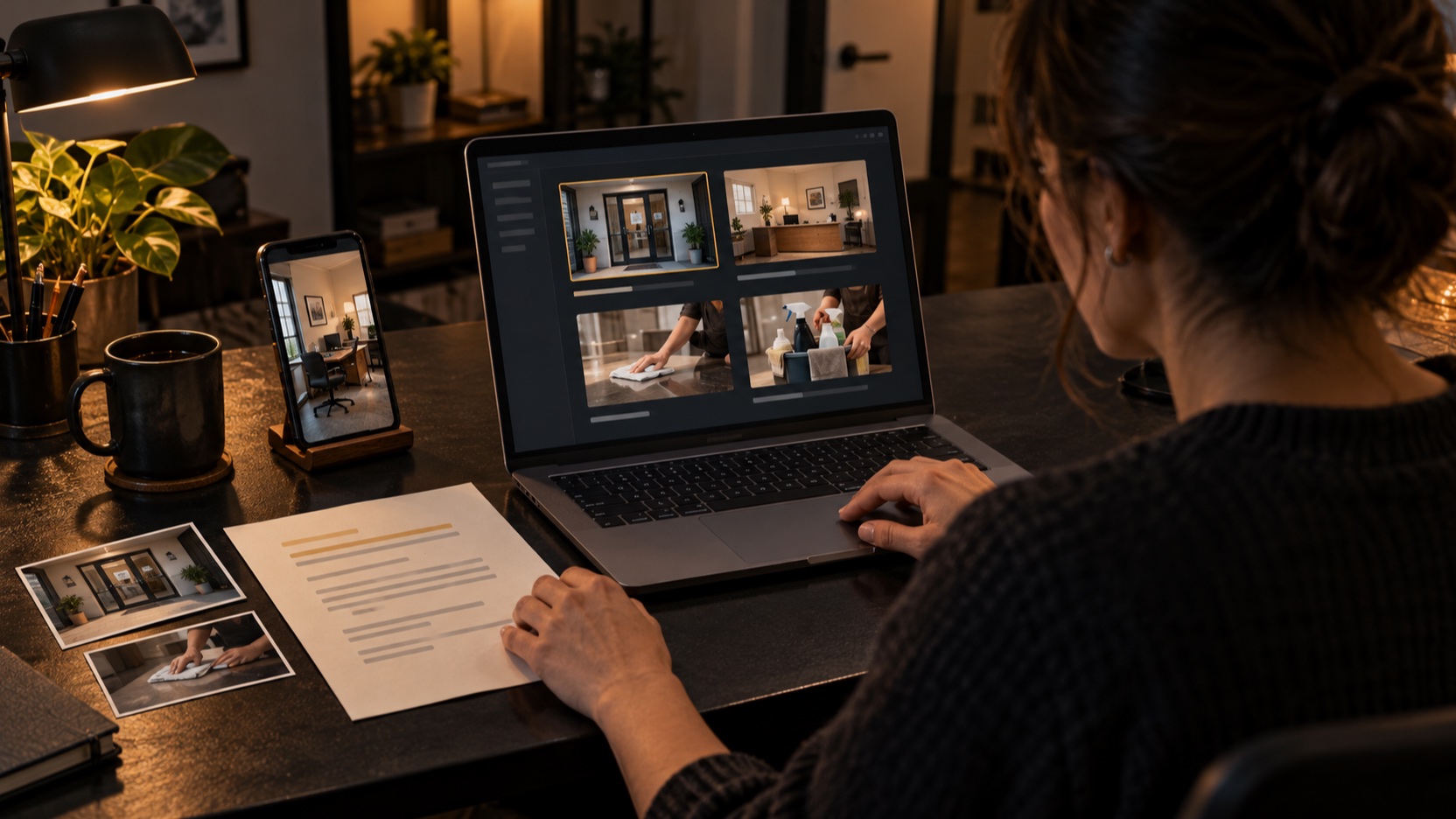
You have a script explaining what your business does. Maybe you wrote it between customer calls. Maybe an AI writing tool helped. Now you need a video, and the document does not tell you what to put on screen.
For a small business owner without a production team, that is where the project can stall. You have a few phone photos, a logo, and a website. You still need to choose the visuals, record the words, and assemble something a potential customer can follow.
Start with one service, one customer question, and one next step. Use your own material to show the business, then source stock footage for the surrounding context. AI can help find those supporting clips. You make the final choices and put them together in an editor.
Already have the service script?
Paste it into ScenePull to find existing stock clips and images organized by scene. Review the options alongside the business photos and recordings you already have.
Give the Video One Job
A first company video does not need to cover your history, every service, and your plans for the future. Pick the question a prospective customer needs answered before contacting you: “Do you clean offices like ours, and how do we ask for a quote?”
That question gives the video a shape: name the situation, explain the relevant service, show how it works, and tell the viewer what to do next. Put anything that does not help answer it back on the website.
If AI drafted the script, check every business claim before sourcing footage. Replace “industry-leading solutions” with the actual work you do. Remove response times, guarantees, locations, or credentials the tool invented. A sentence you cannot explain plainly or support with facts does not belong in this video.
A Short Service Video Script You Can Adapt
The example below is for a fictional commercial cleaning business, not a ScenePull customer or a case study. Replace the brackets with accurate details. Keep the described process only if it matches your business; otherwise rewrite it before recording.
“Looking for regular cleaning for your office?
At [business name], we clean offices in [actual service area]. Our service includes [two or three tasks you provide].
We agree on the areas to clean and the visit schedule with you before work starts.
Here is the checklist we use to keep those tasks clear.
To request a quote, tell us your location, the size of your space, and the cleaning you need. We will explain the next step.
Visit [website] and choose [actual contact option] to get in touch.”
Read your adapted version aloud and time it. Aim for a short explanation you can say comfortably, with room for someone to read the final contact details. If it runs long, remove a point instead of rushing the recording.
The checklist sentence needs an actual checklist on screen. If you do not use one, replace that sentence with another real part of your process you can show. The script and the available material should agree before you start editing.
Turn the Script Into Six Visual Decisions
A shot plan is simply a note of what appears while each part is spoken. You can build this one with a few original images, a brief phone recording, a website capture, and a contextual stock clip.
| Scene | Narration | What to show | Where it comes from |
|---|---|---|---|
| 1. The situation | “Looking for regular cleaning for your office?” | A modest office interior that fits the kind of space you serve | Contextual stock footage, or an original location photo you can use |
| 2. The service | Your business name, service area, and actual tasks | Your logo, accurate area text, and your own equipment or a real task demonstration | Your business assets and phone footage |
| 3. The arrangement | Agreeing on areas and the visit schedule | A close-up of an unbranded calendar, with a short text overlay listing the details you confirm | Contextual stock footage; the overlay describes your actual process |
| 4. The process | “Here is the checklist we use...” | A readable crop of your real checklist, with private details removed | Your document screenshot |
| 5. The inquiry | The information needed for a quote | Your actual inquiry page; highlight the relevant fields | Your website screen recording or screenshot |
| 6. The next step | Your website and contact option | A plain end card with the same wording the customer will find on the site | Your logo and verified contact details |
Keep each shot readable. A still image is enough when movement adds nothing. For the checklist, a close crop of a few relevant rows will usually explain more than a wide shot of an entire page.
Stock footage can establish the office setting. A stock cleaner in a uniform could be mistaken for your employee, and a spotless stock office could be mistaken for your completed job. Reserve those business-specific moments for your own material. If you cannot show a claim clearly, revise the line or use an accurate text card.
Use ScenePull to Source the Supporting Footage
ScenePull reads a script, identifies visual scenes, and finds matching existing stock clips and images. The results are organized by scene, so you can review a candidate against the part of the script it would support.
Paste your finished narration into ScenePull, then use your shot plan to decide which results you need. In this example, the opening office scene and the calendar cutaway are stock-sourcing tasks. The checklist and inquiry form come from your business, even if a stock result looks more polished.
Preview the footage itself. Check whether the office resembles the spaces you serve, whether the useful action stays in frame, and whether the clip will fit your chosen video shape. Reject a result when it implies something the script cannot support. You do not need to use stock for every detected scene.
ScenePull provides a downloadable ZIP with stock assets organized by scene; download access and limits depend on your plan. It does not generate original AI footage or edit the finished company video. Keep your original business assets with the project and bring the selected files into your editor yourself.
Fill the gaps in your shot plan
Use ScenePull to find contextual stock options for your narration, then choose the clips that belong beside your own photos and screenshots.
Assemble a First Version in Your Editor
Choose the video's destination before arranging the footage. A horizontal website video and a vertical social post need different framing. Build the first version for one destination, then make a separate crop if you need another.
- Record the narration. Use a quiet room and the script you checked. Listen back before editing; redo any line where background noise or rushed words make the service unclear.
- Place the voice recording first. It gives you the timing for each scene. Leave a pause where the viewer needs to read the checklist or contact details.
- Add the visuals in script order. Import the selected stock files and your original assets. Trim each to the relevant spoken section. Use simple cuts, and hold on the evidence long enough to understand it.
- Add readable text. Include captions, the service area where useful, and the final contact instruction. Check spelling, names, and line breaks yourself.
- Review the exported file. Watch it on a phone with sound, then without sound. Confirm the service and next step remain clear. If you add music, keep it below the voice.
Check the source terms for the stock assets and music you select, and retain their source records with the project. Use original business material you have permission to publish, with customer names, addresses, and other private details removed where needed.
Before posting, follow the contact instruction yourself. Does the page open? Is the button named correctly? Can someone submit the inquiry described in the video? Fixing that path matters more than adding another transition.
Publish the Service You Can Show Clearly
Your first video is ready when a potential customer can understand the service, see real details from your business, and find the next step. It can be a modest edit: your voice, a few original assets, and carefully chosen supporting footage.
For more help choosing supporting shots, read our B-roll footage guide. If you have the shots planned and need to source them, our guide to finding stock footage faster explains how to narrow each search.
Bring your company script
Find stock clips and images for its visual scenes with ScenePull. Review the choices, add your business material, and take the selected assets into your edit.